In this blog post I am going to help you setup a kubernetes sendmail relay to send alerts via email and optionally receive them in slack. The following instructions were used to setup the smtp sendmail relay on OpenShift. Results should be the same but may vary on other kubernetes flavors
Table of Contents
- Prerequisites
- Knowledge
- Setting UP TLS
- GSuite App Password
- DNS Considerations
- Configuration
- K8s Deployment
- K8s Service
- Setting up Slack Channel Email
One of the most painful parts of having a home lab environment is a mishmash of old/used hardware. With the old/used hardware things are going to break and you will need to alert on them. Part of this pain is figuring out how to get alerts for your hardware for when they break. In my case I have a number of used and very old Dell r420s. While there is a number of methods I could use to receive alerts from my hardware I chose good ol’ email. Why? It is generally the most ubiquitous form of alerting for both hardware and software. The reason most people don’t use it is the headache to setup every piece of hardware or app with email alerts. Another reason is I want to have emails for all my alerts is that if you pay for a slack subscription you can send emails to a slack channel.
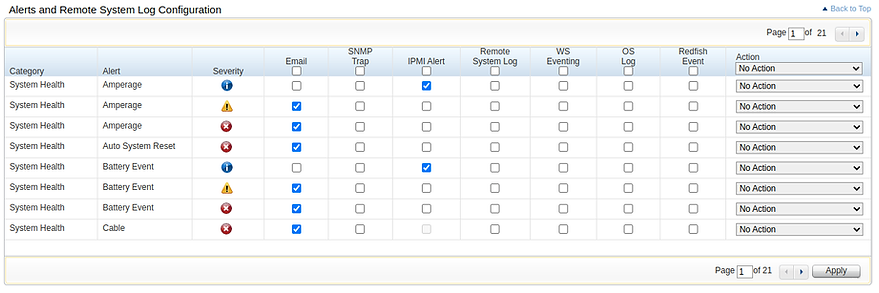
Though one of the headaches of email alerting is configuring everything you have with your cloud email account. In an effort to solve this problem I have taken advantage of the work done by Namshi and their docker smtp container to create a relay running on my home k8s cluster.
Knowledge
It is assumed in this article you have working knowledge of kubernetes, DNS, certificates, and networking. If you find that you need more information on some of these topics please feel free to contact me.
Setting Up TLS
Before I setup the pod/deployment I needed to setup the TLS certificates. Why TLS? Well you want to deliver your email securely whenever possible and it ensures a level of trust of the sender (some mailservers will refuse non TLS smtp). You can buy your own wildcards or use certbot or something similar to create your certs. Once you have your certs you will need to base64 encode both your key and certificate.
kind: Secret
apiVersion: v1
metadata:
  name: smtp-cert
  namespace: whatevs
data:
  cert: >-
    insert.b64.cert.here
  key: >-
    insert.b64.key.here
type: Opaque
GSuite App Password
Because I am using GSuite I needed to setup an application password for my account you can find the instructions here. Depending on your cloud email provider instructions may vary.
DNS Considerations
Because we are dealing with DNS and email you may need to have your DNS properly configured so whatever you put into the MAILNAME environment in your deployment should resolve to your home lab external IP.
K8s Deployment
We can now put together the deployment configuration. If you read the container instructions here you will know there is a multitude of environment options and you will need to customize them to suite your environment. Of important note is the fact that I am mounting the TLS certificates as volumes so they can be consumed as local files as needed in the environment definition. You will also notice that I am not using port 25, this is because it is a privileged port and will require elevating the container privileges. This is something I don’t want to do with a container that can will be communicating with the outside world.
kind: Deployment
apiVersion: apps/v1
metadata:
  name: smtp-relay
  namespace: whatevs
  labels:
    app: smtp-relay
spec:
  replicas: 1
  selector:
    matchLabels:
      app: smtp-relay
  template:
    metadata:
      creationTimestamp: null
      labels:
        app: smtp-relay
    spec:
      restartPolicy: Always
      terminationGracePeriodSeconds: 30
      containers:
        - resources: {}
          terminationMessagePath: /dev/termination-log
          name: smtp-relay
          readinessProbe:
            tcpSocket:
              port: 2525
            initialDelaySeconds: 5
            timeoutSeconds: 1
            periodSeconds: 10
            successThreshold: 1
            failureThreshold: 3
          livenessProbe:
            tcpSocket:
              port: 2525
            initialDelaySeconds: 15
            timeoutSeconds: 1
            periodSeconds: 20
            successThreshold: 1
            failureThreshold: 3
          env:
            - name: PORT
              value: "2525"
            - name: RELAY_NETWORKS
              value: "my-internal-cidr/24"
            - name: RELAY_DOMAINS
              value: "example.com : myslack.slack.com"
            - name: SMARTHOST_ADDRESS
              value: "smtp-relay.gmail.com"
            - name: SMARTHOST_PORT
              value: "465"
            - name: MAILNAME
              value: "home.h00pz.co"
            - name: GMAIL_USER
              value: "addy@gmail.com"
            - name: GMAIL_PASSWORD
              value: "app-password"
            - name: KEY_PATH
              value: "/tls/key"
            - name: CERTIFICATE_PATH
              value: "/tls/cert"
            - name: BIND_IP
              value: "0.0.0.0"
          ports:
            - name: smtp
              containerPort: 2525
              protocol: TCP
          imagePullPolicy: IfNotPresent
          terminationMessagePolicy: File
          image: namshi/smtp:latest
          volumeMounts:
          - mountPath: "/tls"
            name: smtp-cert
            readOnly: true
      volumes:
        - name: smtp-cert
          secret:
            secretName: smtp-cert
      dnsPolicy: ClusterFirst
K8s Service
You should now have your mail relay pod up and running but still only internally accessible to the cluster. To verify this you can run ‘kubectl get pods -n whatevs’
nromanoff@black-widow:~$ kubectl get pods -n media
NAME                              READY   STATUS    RESTARTS         AGE
smtp-relay-5fbd844b6d-l22mr       1/1     Running   0                2m
It should be noted that because were dealing with non HTTP based application we will not be using an ingress controller to expose the smtp relay pod to the external network. Because I am running my k8s on bare-metal I am using metallb to provide my LoadBalancer service. I am provisioning metallb loadbalancerIPs manually so in the below code snippet you would need to customize that.
kind: Service
apiVersion: v1
metadata:
  name: smtp-relay
  namespace: whatevs
  labels:
    app: smtp-relay
spec:
  externalTrafficPolicy: Cluster
  ipFamilies:
    - IPv4
  ports:
    - name: smtp
      protocol: TCP
      port: 2525
      targetPort: 2525
  internalTrafficPolicy: Cluster
  allocateLoadBalancerNodePorts: true
  type: LoadBalancer
  loadBalancerIP: manual-metallb-ip-addy-here
  ipFamilyPolicy: SingleStack
  sessionAffinity: None
  selector:
    app: smtp-relay
Setting up Slack Channel Email
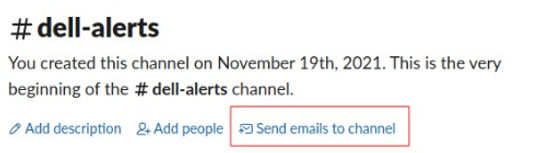
Setting up a slack channel to receive email is extremely easy, open your slack workspace in the app or webui and navigate to the channel you want to receive email alerts for. If you have a paid slack subscription you will see the link similar to the image below. Once you have that email address you can send email to it.
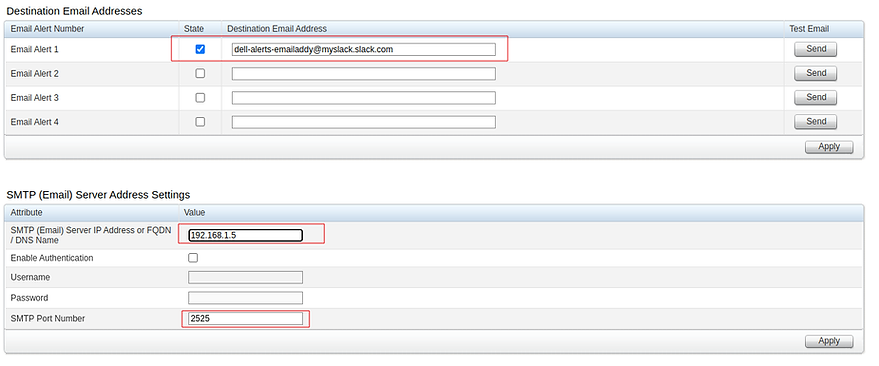
In my Dell r420 iDRAC I can now setup the slack email address and use the smtp relay IP and port.
As you can see from the below slack message we are successfully recieving email to our slack channel.

 Home | h00pz
Leave a comment